The approval process ensures that the policies in the WHO eManual are reviewed and validated before being published. It is only after the approval process has been completed that the changes are visible to end-users and the content is searchable.
After completion of the process, a copy of the previous version of the page is automatically created by the system and archived. The list of archived copies of any policy page can be accessed by clicking on the
View history link available in the
Publishing Information box on the right-hand side of the window. A more advanced view exists for contributors and approvers – go to the section Reviewing changes below.
As a contributor, you can initiate the approval workflow once a policy page is ready for publication.
1. Open the WHO eManual and sign in.
2. Using the navigation bar, browse to the policy page to be published and select
Edit page from the Settings menu.
If visible, you can also directly click the
EDIT option under the Settings icon.
Remember to
Check in the policy page before initiating the approval process.
3. From the
PUBLISH tab, click the
Start a workflow option.
The
Workflow screen opens.
4. Click the
eManual Publishing Workflow 2.0 option to start the approval workflow.
The
Request Approval screen opens.
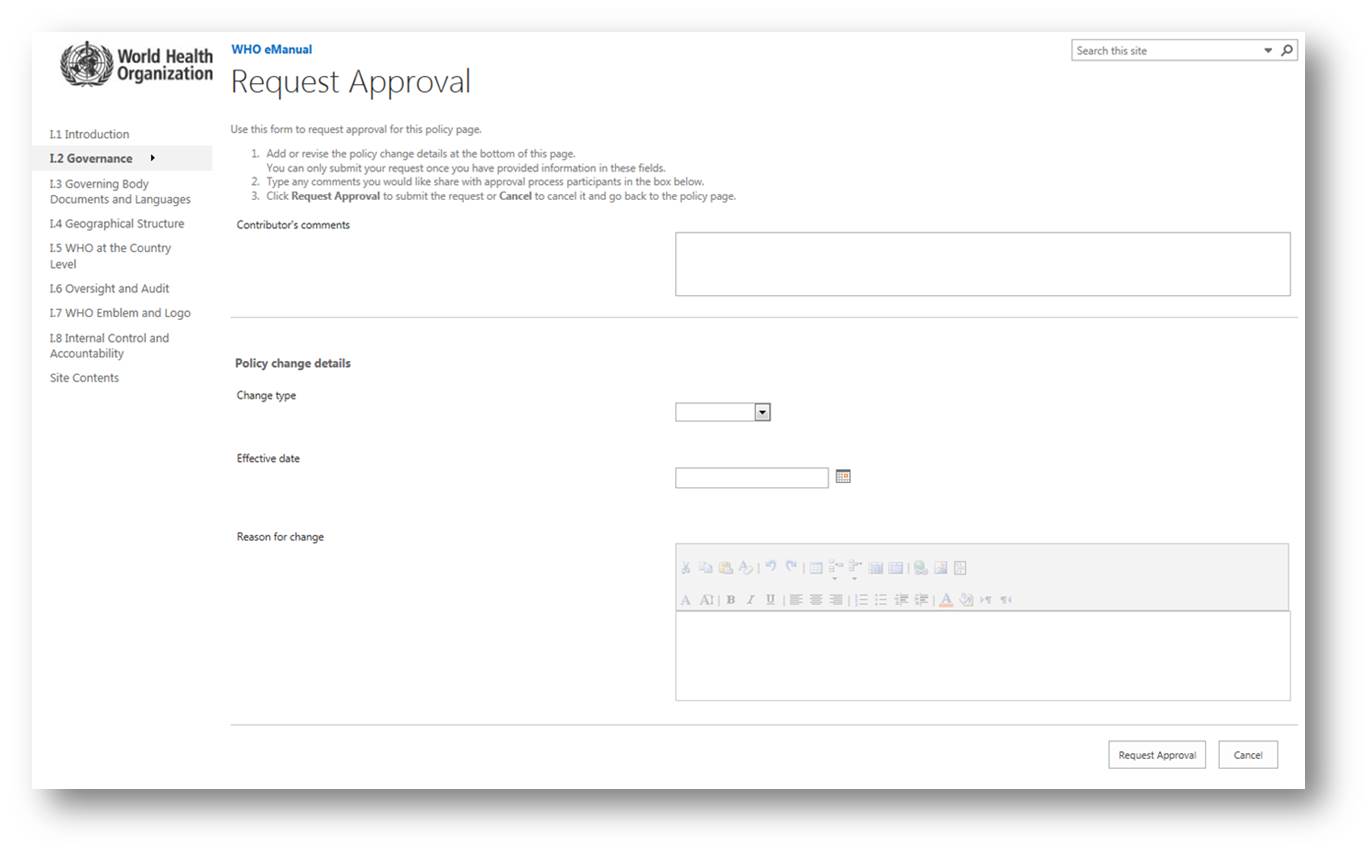
5. In the
Contributor's comments field, type any relevant information to support the publication of the page. This comment is visible only to approvers.
6. Complete all the fields under the
Policy change details section. This information is visible to end-users who review the different versions of a policy page.
7. After all the fields have been completed, click
Request Approval.
A notification email is sent to the first-level approver with a link to the policy page under review. As the contributor, you are notified when the workflow is completed, or if one of the approvers rejects the request for publication.
Caution: Do not open a policy page in
Edit Mode after an approval workflow has been initiated. Doing so will cancel this workflow. If you need to make further changes to the policy page, use the
End this workflow option under the
PUBLISH tab,
Status option.
To learn more about the approval process, go to the section: Approving or rejecting a policy page below.
Before approving or rejecting a policy page that has been modified, you can review the changes made and compare the revised version of the page with previous versions.
1. Click on the link provided at the bottom of the notification email.
The draft version of the policy page is displayed in your browser window.
2. If you are not already signed in to the WHO eManual, click on the
Sign In option in the top right-hand corner.
3. Click on the
PAGE tab and select
Page history from the
Manage section.
A new screen opens where the changes to the policy page are highlighted.
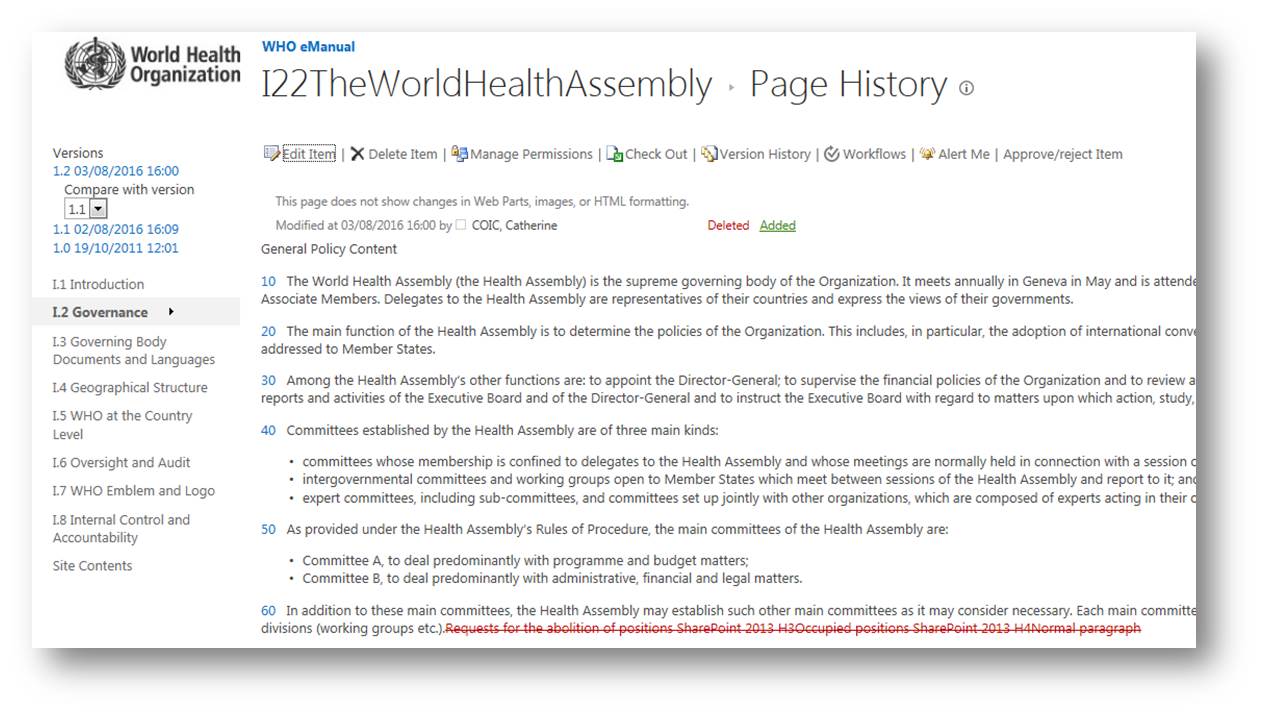
4. On the left-hand side of the screen, choose the version of the policy page that is to be compared with the draft policy. By default, the proposed option is the currently published page.
Note: If only one version of that policy page exists, no option is displayed.
Caution: Do not use the
Edit Item option at the top of the page as the approval workflow will be automatically cancelled and the policy page will be checked out to you. If modifications are needed to the policy page, reject it and liaise with the contributor that has initiated the approval workflow.
After you have reviewed the changes made to a policy page, you have the possibility to approve or reject these changes.
1. Navigate to the policy page under review
3. Go to either the
PAGE tab or the
PUBLISH tab and click
Approve Or Reject.
The
Approve or Reject Policy Page dialogue box opens.
Note: if you do not see the Browse/Page/Publish tabs on the top left you can open the Settings menu (cog icon top right) and toggle Show/Hide Ribbon.
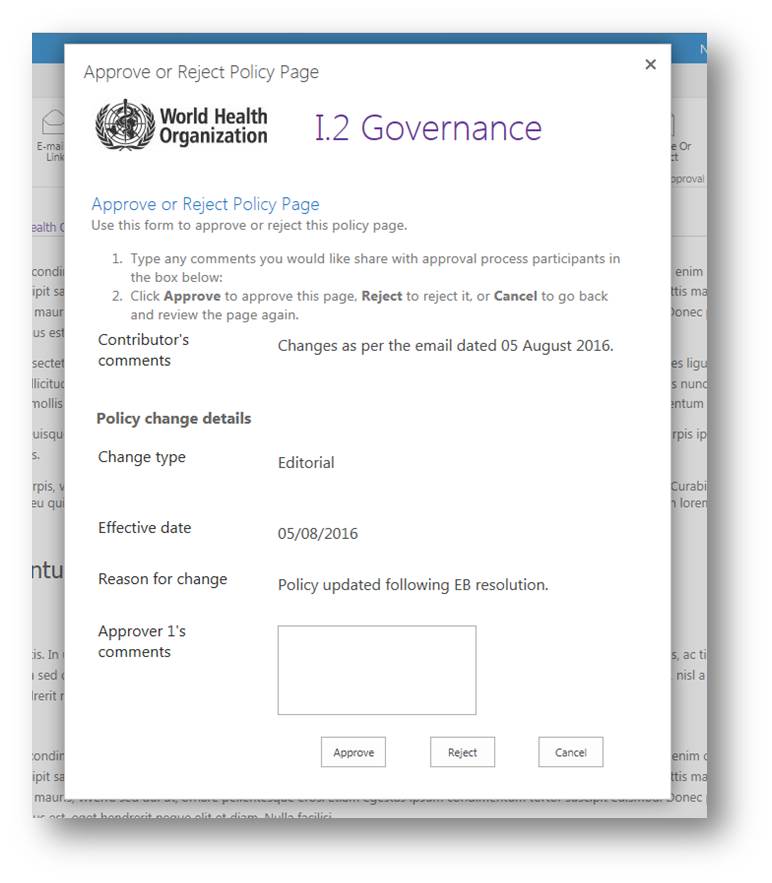
4. If you are the first-level approver, type a comment in the
Approver 1's comments field and click either
Approve or
Reject.
- Approve: a notification email is sent to the second-level approver.
- Reject: a notification email is sent to the contributor, the approval workflow is cancelled and the page remains in draft mode.
5. If you are the second-level approver, type a comment in the
Approver 2's comments field and click either
Approve or
Reject.
- Approve: a notification email is sent to the contributor and the new version of the policy is published.
- Reject: a notification email is sent to the contributor, the approval workflow is cancelled and the page remains in draft mode.
Note: To close the
Approve or Reject Policy Page dialogue box, click on the X situated at the top right-hand corner.
To learn how to add a policy page, go to the section:
Adding a policy page
To learn how to import and format the text of the policy, go to the section:
Modifying a policy page
- If the link at the bottom of the notification email does not work, access the page under review directly by signing in to the WHO eManual and use the navigation bar to browse to the relevant policy page.
Approver | Person responsible for reviewing and approving the content of the WHO eManual (structure and policies). The approval process requires two approvers per section. The first-level approver validates the technical aspects of the policy, while the second-level approver certifies that the policy is in line with all relevant policies and regulations. |
Check In / Check Out | Status of a policy page. Check In indicates that the policy page is not being modified by anyone. Check Out indicates that the policy page is being modified or reviewed. The status must be changed back to Check In in order for anyone to be able to work on the policy page. |
Contributor | Person
responsible for updating existing policies and adding new policies. They are also responsible for formatting the policy pages and initiating the approval process. The contributors for a part or a section also maintain the related content pertinent to the part or the section in question. |
History | Represents the different versions of a specific page. Versions are automatically created by the system when a new iteration of the page is published. |
Policy Updates | List of all the modifications made to a policy page, also providing a justification for the change. |
Ribbon | A list of menu options that are accessible to users. The content of the ribbon is contextual and changes depending on what actions are being performed or the user's role. |
Settings | A drop-down menu that can be access by clicking the "wheel" icon on the Ribbon. Among other options, allow a contributor to open a policy page in the Edit Mode. on the Ribbon. Among other options, allow a contributor to open a policy page in the Edit Mode. |
Spellcheck | When checking in or approving a page, an automatic spellcheck is performed. The information is indicative and no correction is needed in order to continue. It is also possible to perform a spellcheck from the FORMAT TEXT tab, in Edit Mode. By default, the language for the WHO eManual is set to English United Kingdom. |
Update | Changes to a policy page. Updates may, for example, be due to a change to the policy itself or to correct a mistake in the text of the policy. The list of updates is accessible through the "View Policy Updates" link in the Help box visible on each section and policy pages. |
Workflow | Represents the different steps necessary to complete a process. In the WHO eManual, the only workflow used is the approval workflow. |