When a new policy page is created or an existing policy page is updated, the content of the page must be modified by the contributor.
The text of the policy should be prepared in Microsoft Word before being imported into the WHO eManual.
While working on a page, contributors have the following options available from either the
PAGE tab or the
FORMAT TEXT tab in the ribbon.
Save – changes made to the page are saved. The Edit Mode is closed. To continue working on the page, select Edit this page from the Settings menu.
Save and Keep Editing – changes made to the page are saved. It is possible to continue working on the text of the policy.
Stop Editing – changes to the page since it was saved for the last time are lost. The Edit Mode is closed. The page remains checked out to you. Other people cannot access the page and cannot edit it or review it.
Check In – will check the page back in. Other people are able to access the page and edit it or review it. Changes to the page must be saved before selecting this option.
Discard Check Out – will check the page back in. Other people are able to access the page and edit it or review it. Changes to the page since the last time it was checked in are lost.
1. Open the WHO eManual and sign in.
2. Using the navigation bar, browse to the policy page where the policy text must be imported and select
Edit page from the Settings menu.
If visible, you can also directly click the
EDIT option under the Settings icon.
3. Open the Microsoft Word document containing the final text of the policy.
4. Select the text in the Microsoft Word document and copy it.
5. In the WHO eManual, place the cursor in the
General Policy Content box and use the
Paste Clean option from the Paste menu of the
FORMAT TEXT tab.
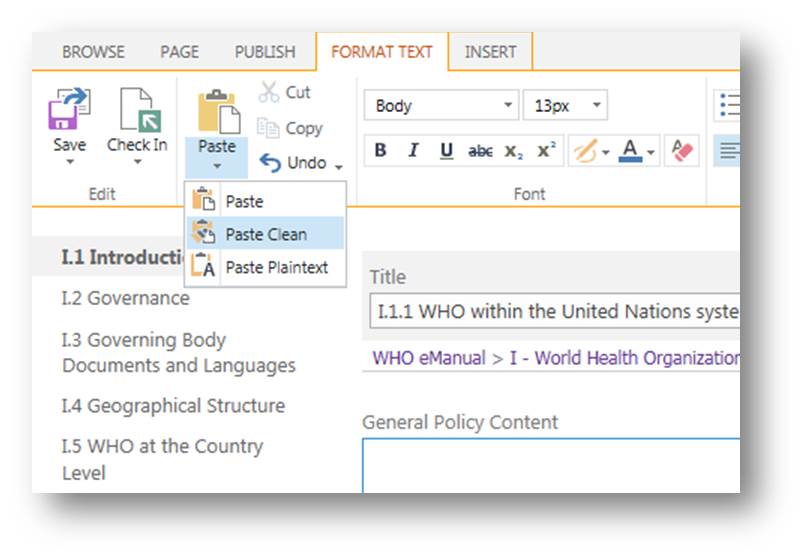
The text is now available in the WHO eManual, without any formatting.
6. Select the newly uploaded text and format is as follows:
-
Paragraph style for the text of the policy
-
Heading 3 and
Heading 4 styles for the first- and second-level headings, respectively
-
Bulleted or
numbered paragraph styles for lists.
Note: Heading 1 and Heading 2 styles are reserved for part and section titles, respectively.
A unique bookmark must be defined for every paragraph number and heading within a policy. Those bookmarks are used to create links and to build the table of content at the top of long policy pages.
1. Open the WHO eManual and sign in
2. Using the navigation bar, browse to the policy page where the bookmarks must be created and select
Edit page from the Settings menu.
If visible, you can also directly click the
EDIT option under the Settings icon.
3. Select the paragraph number or heading for which you are creating a bookmark.
4. Click on the
INSERT tab and select the option
Link > From Address.
The
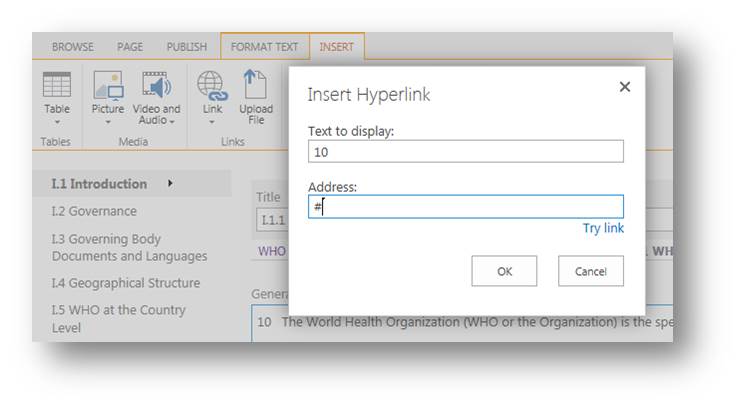
Insert Hyperlink dialogue box opens and the text you have selected is displayed in the
Text to display field. If not, type in the appropriate text.
5. In the
Address field, simply type # (hash sign) and click
OK.
6. In the
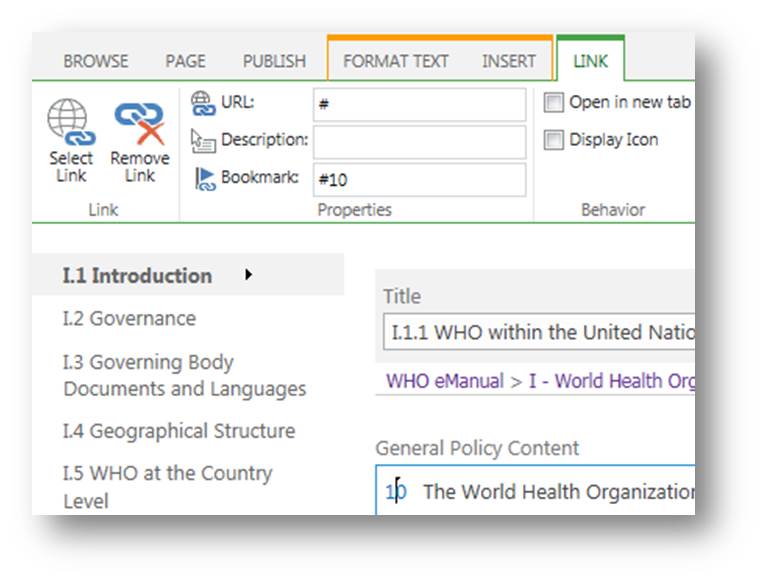
LINK tab now open, type #paragraphnumber or #heading in the
Bookmark field.
Do not change the value in the
URL field.
The bookmark is created and can be used to link to this specific destination.
7. Place your cursor back into the policy text and select the next paragraph number or heading.
8. Repeat this procedure for the remaining paragraphs and headings in the policy page.
To ease the process of adding a link to another page or specific paragraph, open the policy page you are working on on a first browser window and the page you are creating a link to on a second browser window.
1. On the first browser window, open the WHO eManual and sign in.
2. Using the navigation bar, browse to the policy page where the link must be added and select
Edit page from the Settings menu.
If visible, you can also directly click the
EDIT option under the Settings icon.
3. In the second browser window, copy the URL of the page from the Address bar.
4. In the first browser window, select the portion of text to which you are adding a link to and open the
INSERT tab.
5. Select
Link >
From address
The
Insert Hyperlink dialogue box opens. The text you have selected is displayed in the
Text to display field. If not, type in the appropriate text.
6. In the
Address field, paste the URL obtained at step 3 and click
OK.
- To link to a specific paragraph number or heading within a policy page, enter #destinationbookmark at the end of the URL.
https://emanual.who.int/p01/s03/Pages/I33Officiallanguages.aspx#40
https://emanual.who.int/p05/s01/Pages/V13Recordsmanagement.aspx#records%20management%20in%20gsm
Note: If the link that is added is outside the WHO eManual, it must be configured to open in a separate tab – in the
LINK tab, tick the box
Open in new tab.
The link is now added to the text and you can verify it is configured correctly by clicking on it.
To learn how to initiate the approval process, go to the section:
Starting the approval workflow
To learn how to review, approve and reject policy pages, go to the section:
Approval process
- When you have finished working on a page, remember to check the page back in before closing the WHO eManual. From the
PAGE tab, select either
Check In (changes made to the policy page are saved) or
Discard Check Out (changes made to the policy page are not saved). Doing so allows other contributors or approvers to work on the page.
- The page remains in draft mode and modifications remain invisible to end-users until the approval process has been completed and the page is published.
- To preview the page you are working on, click on
Preview from the
PAGE tab. The current page opens in a separate window. When you have finished reviewing the modifications, close the new window to avoid any confusion.
- To link to a specific destination within a policy page, right-click on that specific destination and open it in a new window. Copy the full URL from the address bar of this window and paste it in the
Insert Hyperlink dialogue box.
- Some paragraphs or headings do not have a bookmark defined. If you are not able to link to a specific destination, contact the focal point or contributor for the policy page and ask for a bookmark to be added.
Bookmark | Element added to a portion of text (paragraph numbers and headings within a policy page) in order to allow the creation of a link to that specific destination. |
Check In / Check Out | Status of a policy page. Check In indicates that the policy page is not being modified by anyone. Check Out indicates that the policy page is being modified or reviewed. The status must be changed back to Check In in order for anyone to be able to work on the policy page. |
Draft status | Status of a policy page when the page has been modified but the approval process has not been completed. The changes to the policy page are not visible to end-users. |
Edit Mode | Mode specific to the creation and update of content. Accessible via the Settings menu. |
Formatting | Actions that consist in applying styles to the text within a policy page and creating the necessary bookmarks and links. It is mandatory to follow the format defined in these guidelines. Doing so guarantees viewing and navigating the information contained in the WHO eManual is consistent throughout the entire system. |
General Policy Content box | When in Edit Mode, portion of the screen where the policy text is entered and formatted. Information entered in the General Policy Content box is automatically indexed when published and therefore searchable. |
Landing page | Destination page of a link. |
Link | Can either be internal – pointing to a destination within the WHO eManual – or external – pointing to a destination outside of the WHO eManual. |
Navigation bar | Left-hand side of the window that allows for a quick access to specific parts, sections and policy pages. |
Part | Element of the structure of the WHO eManual, representing its highest level. |
Policy page | Element of the structure of the WHO eManual, representing its lowest level. The policies of the Organization are documented at this level. |
Ribbon | A list of menu options that are accessible to users. The content of the ribbon is contextual and changes depending on what actions are being performed or the user's role. |
Section | Element of the structure of the WHO eManual, representing its intermediate level. |
Settings | A drop-down menu that can be access by clicking the "wheel" icon on the Ribbon. Among other options, allow a contributor to open a policy page in the Edit Mode. on the Ribbon. Among other options, allow a contributor to open a policy page in the Edit Mode. |
Spellcheck | When checking in or approving a page, an automatic spellcheck is performed. The information is indicative and no correction is needed in order to continue. It is also possible to perform a spellcheck from the FORMAT TEXT tab, in Edit Mode. By default, the language for the WHO eManual is set to English United Kingdom. |
Update | Changes to a policy page. Updates may, for example, be due to a change to the policy itself or to correct a mistake in the text of the policy. The list of updates is accessible through the "View Policy Updates" link in the Help box visible on each section and policy pages. |
URL | Represents the unique address of a specific page on the internet. The URL is used to create a link. |